II. Transitions with Doors
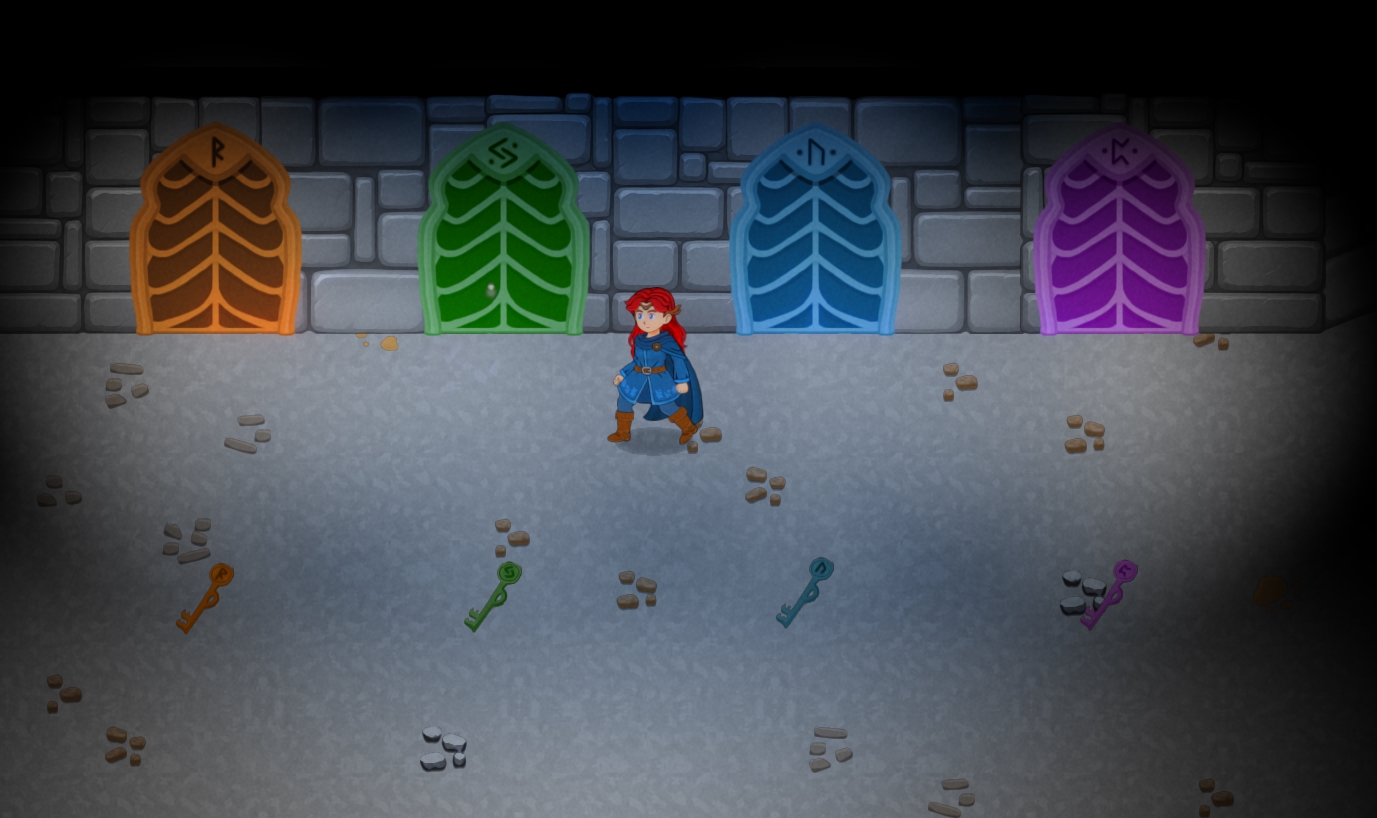
However, if you want to create a more complex experience, you can use the door system. There are four different runic doors. Each door is associated with a key of a specific color and rune.
If you place a key of the same color as the door, the door will appear closed and will open when you pick up the key. If you do NOT place a key, the door will start open and can be used without needing a key.
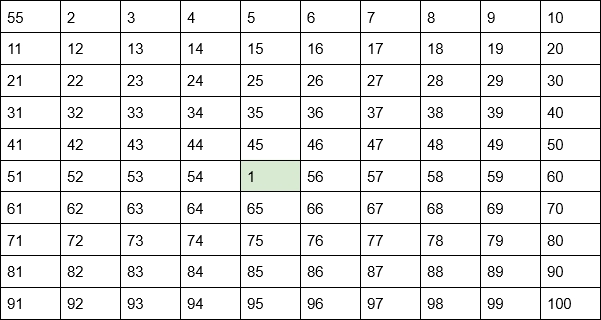
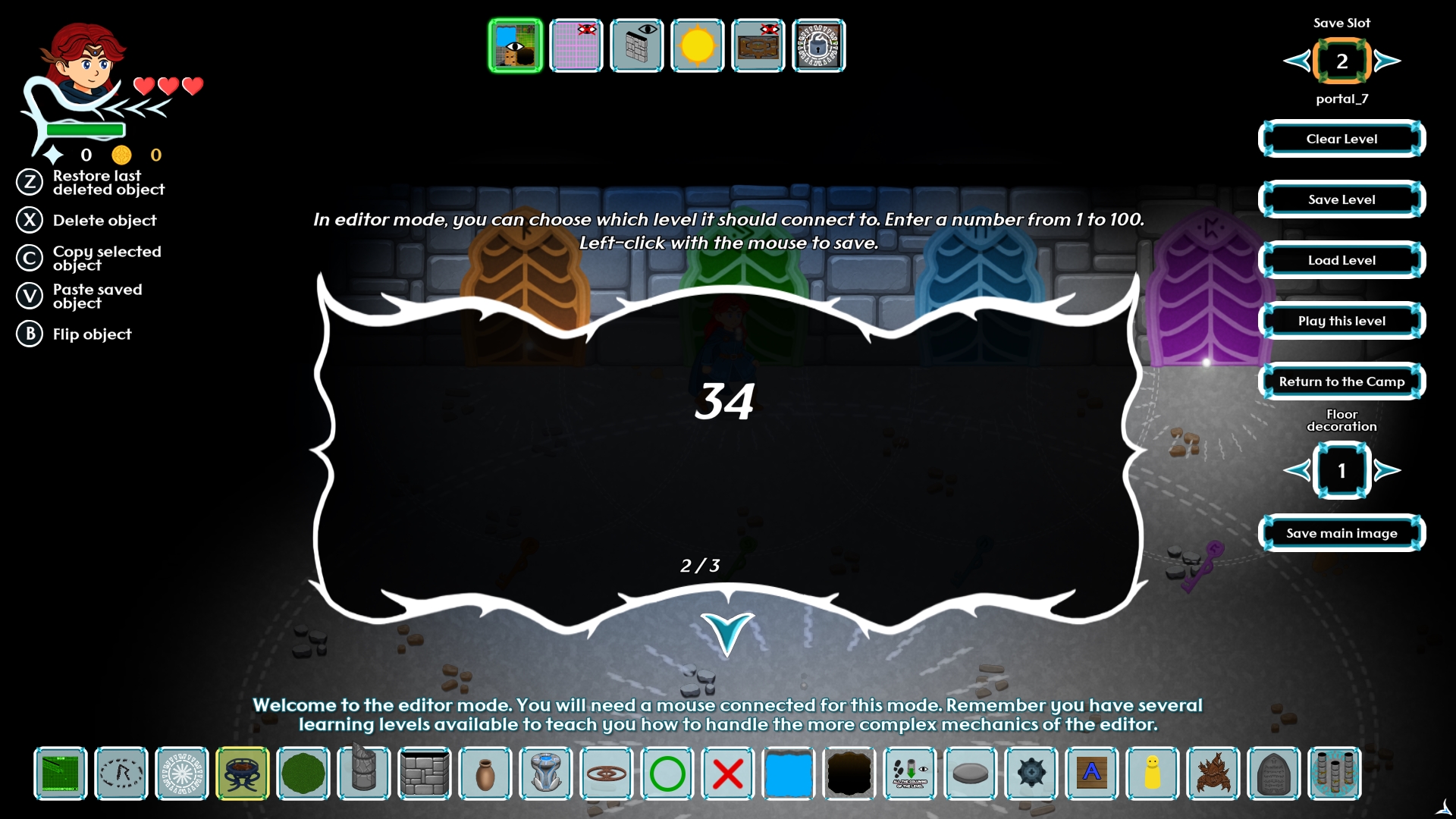
You can interact with doors in editor mode to write a number on them. If you place a key in the room associated with a door, the door will appear closed and you will need to find the key to open it. If you do not place any key, the door will appear open. The door, therefore, will lead to the level written on it. This way you can connect levels in a non-linear way, for example:
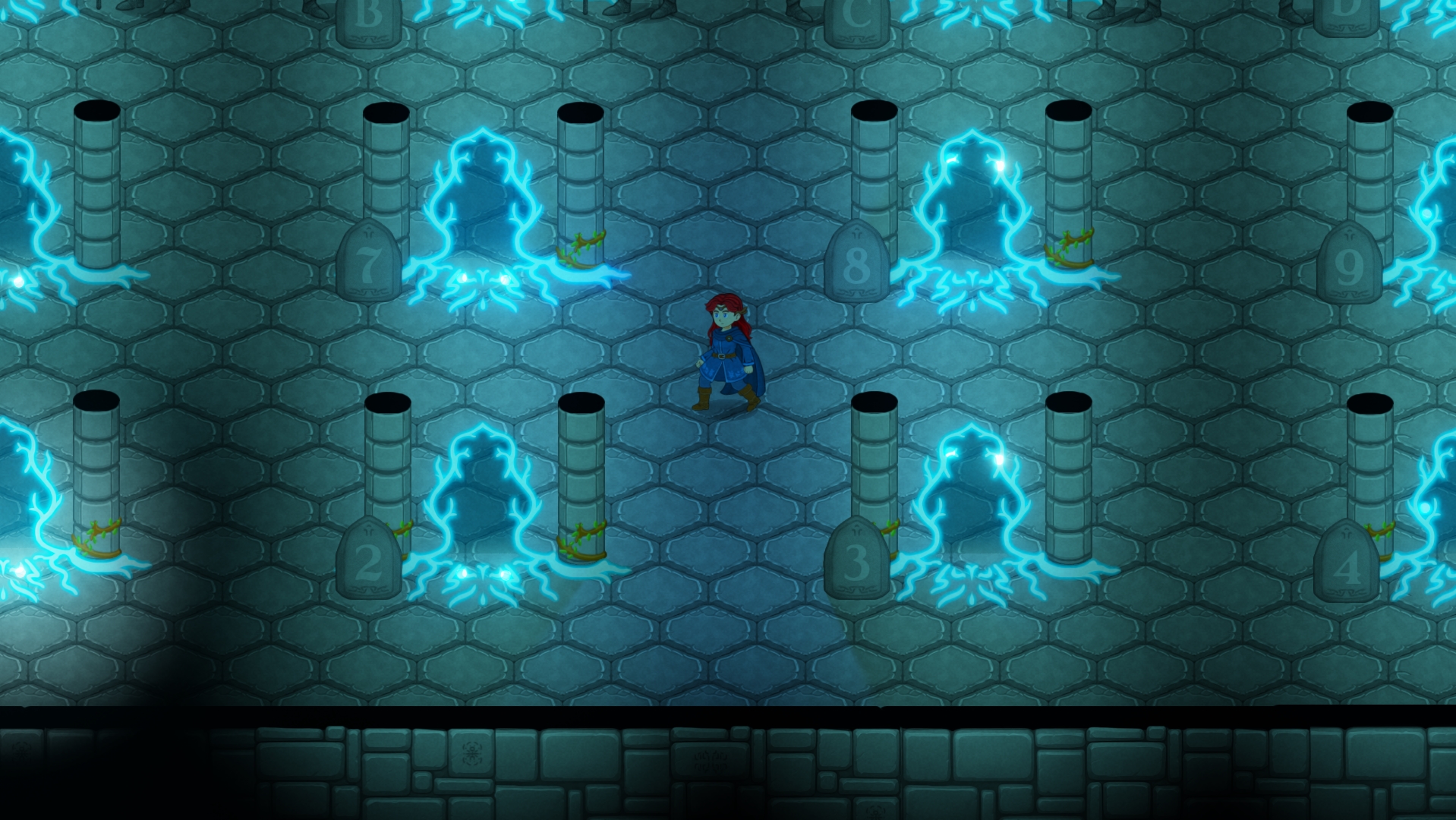
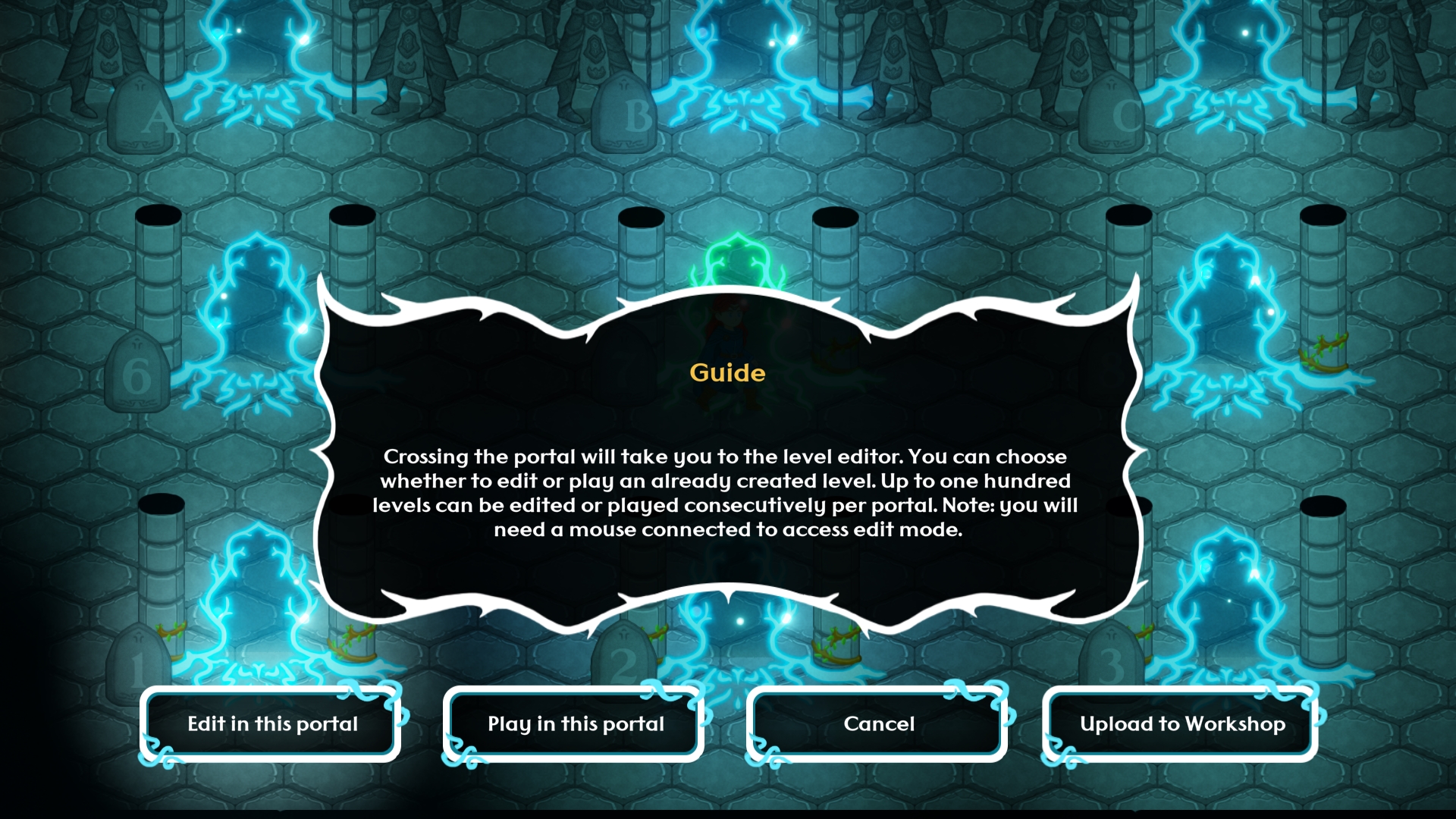
But wait, I have 4 doors, that means… can I connect one level to up to four other levels? That’s right. If you look at the image above, you have an example of a 100-level grid, organized to connect organically.
When designing a full dungeon, the first thing to keep in mind is that it will always start at level 1, so you should plan it from that initial starting level. If it’s a small dungeon of 1 to 3 rooms, no special preparation is needed, but if you want to create a full campaign, planning ahead is highly recommended.
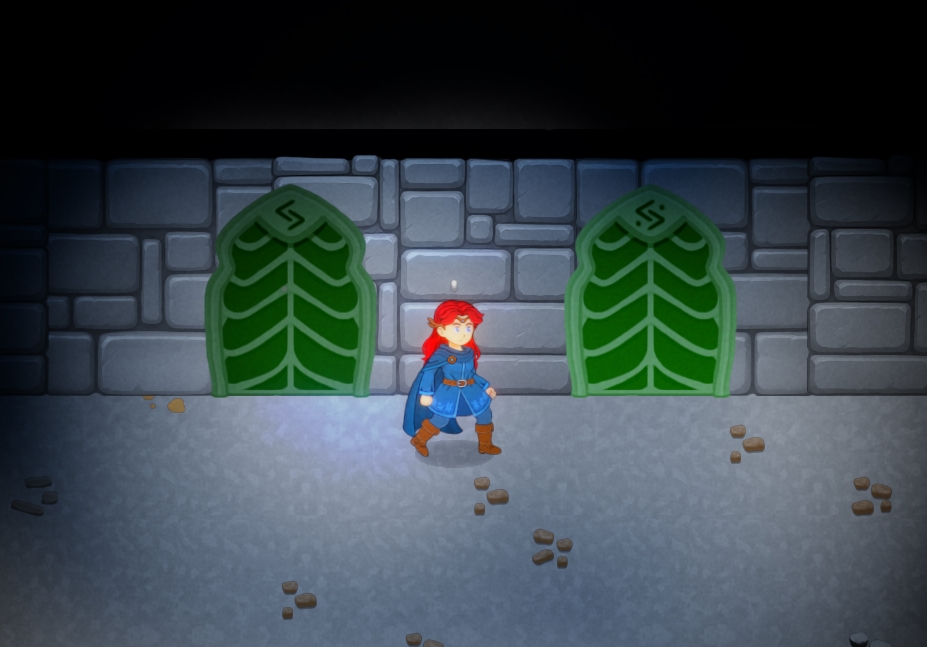
Also, if you link two levels with doors of the same color, the player will appear in front of the door they crossed, allowing you to create very fun experiences, different paths, etc. If you do not link doors, the player will appear at an entry rune or in the center of the room. There are also decorative closed doors that work like an entry rune, placing the player at their position once the level begins.
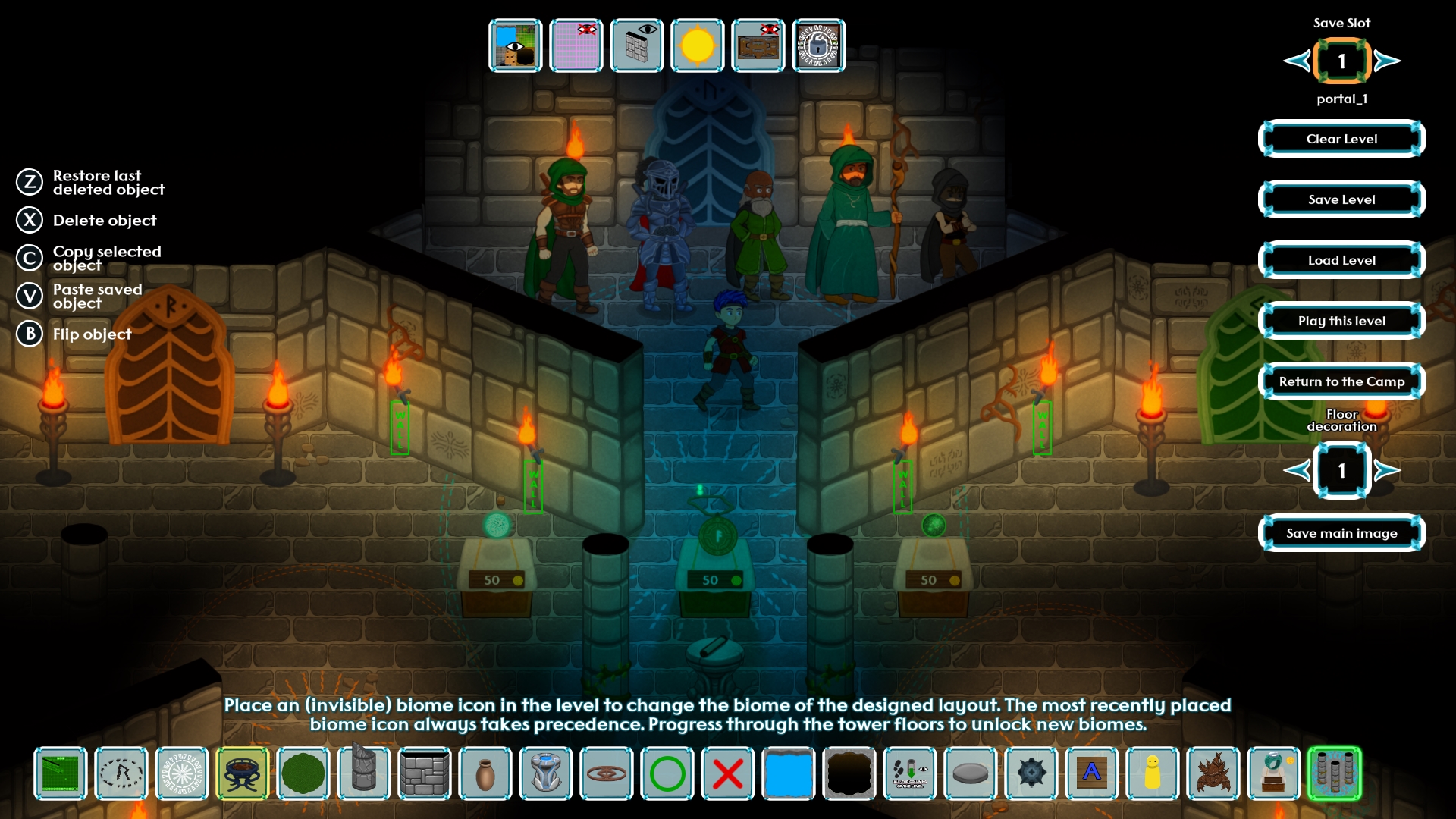
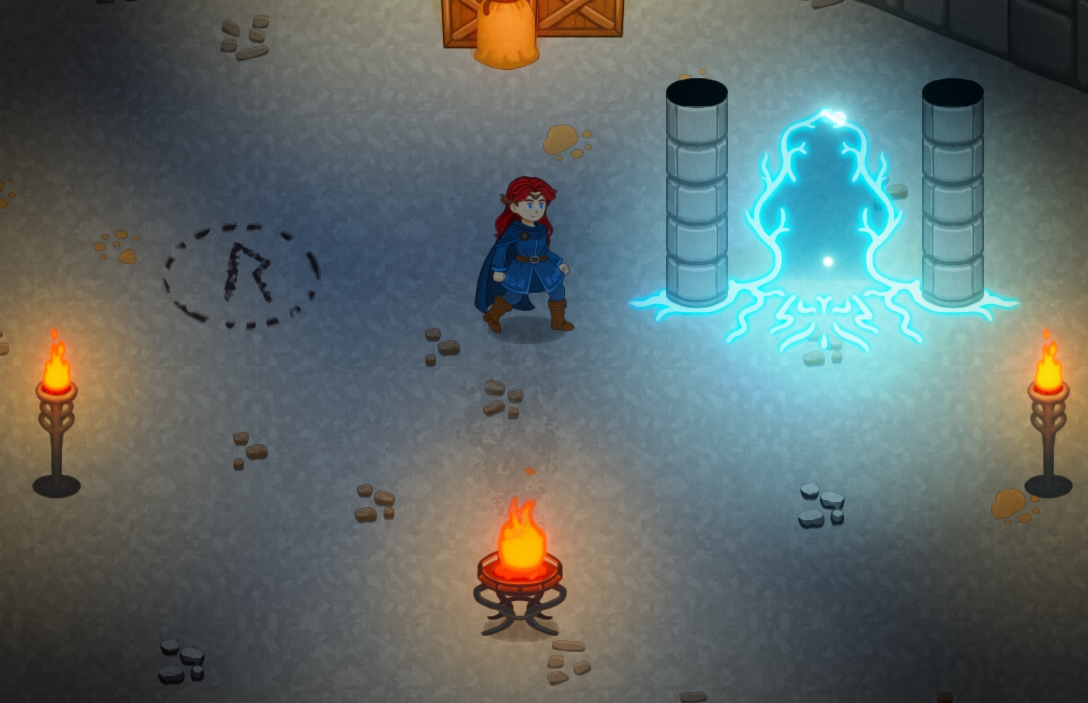
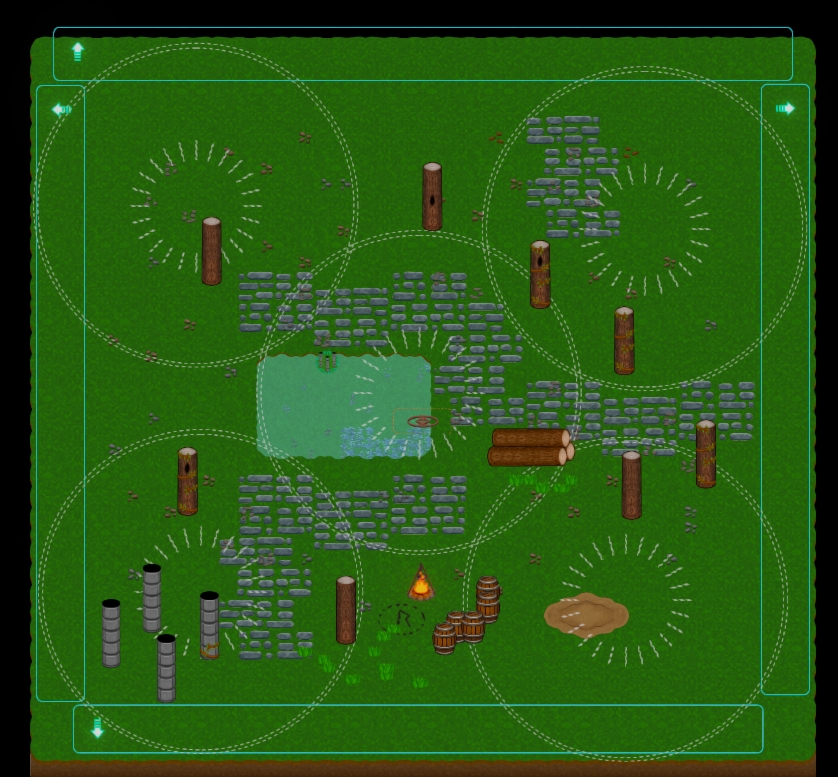
Can you see the two doors in the image above? They are not the same. The difference is in the two dots that accompany the rune · R ·
A simple rune (without two dots) means the door can only be crossed once. It will take you to another room, and when you return to this room, the door will appear closed and, if there was a key, it will disappear.
A rune with two dots · R · means it can be crossed again if you return to the same room twice. Now, you may wonder why this is important.
In The Shadowed Rune Dungeon Editor, levels do not save their progress. If you return to a level with items, treasures, or enemies, the same treasures, items, and enemies will appear again. The experience is designed to go through each level only once. However, you may want to create a story with return points, camps, shops, etc. In this case, one-way doors are ideal for that.
You can link a door with a simple rune to, for example, a treasure room. The player will be able to collect the riches inside, but as soon as they leave and return to the level they came from, the door will remain closed for the rest of the adventure and they will not be able to enter again.
Use this method to create levels with powerful bosses, treasures you only want players to take once, etc.